Tuesday, 10 September 2013

Error Type: system.deployment.application.deploymentdownloadexception unknown subtype in clickonce application.

Recently i have worked with .NET ClickOnce application, in that we published the application and deployed on IIS6.0, every thing working well in IIS6.0. But client changed server and now IIS is 7.5 ,after placing files on IIS7.5 we are unable to download .sdf file from bin folder.

we are getting the following error
ERROR DETAILS
Following errors were detected during this operation.
* [9/10/2013 1:56:27 PM] System.Deployment.Application.DeploymentDownloadException (Unknown subtype)
- Downloading http://xxx/Application Files/versionnumber/bin/Debug/yyy_ce.sdf.deploy did not succeed.
- Source: System.Deployment
- Stack trace:
at System.Deployment.Application.SystemNetDownloader.DownloadSingleFile(DownloadQueueItem next)
at System.Deployment.Application.SystemNetDownloader.DownloadAllFiles()
at System.Deployment.Application.FileDownloader.Download(SubscriptionState subState)
at System.Deployment.Application.DownloadManager.DownloadDependencies(SubscriptionState subState, AssemblyManifest deployManifest, AssemblyManifest appManifest, Uri sourceUriBase, String targetDirectory, String group, IDownloadNotification notification, DownloadOptions options)
at System.Deployment.Application.ApplicationActivator.DownloadApplication(SubscriptionState subState, ActivationDescription actDesc, Int64 transactionId, TempDirectory& downloadTemp)
at System.Deployment.Application.ApplicationActivator.InstallApplication(SubscriptionState& subState, ActivationDescription actDesc)
at System.Deployment.Application.ApplicationActivator.PerformDeploymentActivation(Uri activationUri, Boolean isShortcut, String textualSubId, String deploymentProviderUrlFromExtension, BrowserSettings browserSettings, String& errorPageUrl)
at System.Deployment.Application.ApplicationActivator.ActivateDeploymentWorker(Object state)
--- Inner Exception ---
System.Net.WebException
- The remote server returned an error: (404) Not Found.
- Source: System
- Stack trace:
at System.Net.HttpWebRequest.GetResponse()
at System.Deployment.Application.SystemNetDownloader.DownloadSingleFile(DownloadQueueItem next)


I have tried to solve this problem almost a day but i couldn't.
IIS7.5 is wouldn't allow to view or access file from bin folder.
Hidden Segments used to specifies that certain segments of URLs can be made inaccessible to clients.
So, Finally i just removed bin folder from Hidden Segments in Request Filtering setting from that website on IIS7.5.


After removing that folder from hidden segments, application is able to download .sdf file from server.


and 


Sunday, 24 March 2013

Sign in As different user in SharePoint 2013

In SharePoint 2010 we have "Sign in as different user" option.

But in SharePoint 2013 option removed by MicroSoft.

Now how to get back that option in SharePoint 2013.

Here the steps

1. Go to "C:\Program Files\Common Files\microsoft shared\Web Server Extensions\15\TEMPLATE\CONTROLTEMPLATES".

2. Find Welcome.aspx page and open it in notepad++.

Add the following tag after ID_PersonalInformation menu item template

"<SharePoint:MenuItemTemplate runat="server" ID="ID_LoginAsDifferentUser"
Text="<%$Resources:wss,personalactions_loginasdifferentuser%>"
Description="<%$Resources:wss,personalactions_loginasdifferentuserdescription%>"
MenuGroupId="100"
Sequence="100"
UseShortId="true"
/>"


3. Save the file and Now check for "Sign-in as different user" it should be there.


Reasons for Removing "Sign in as different user" are:
  • Documents opened in external applications are saved with an unexpected user account because the external application runs under the windows account logged in to the machine and not the account you have chosen in SharePoint.
  • Page content shows information from the previous user due to cached information.
  • Session variables contain information from previous user as the cookies are not cleared

The Sign in as Different User functionality is not meant to be used as a security feature!
This feature allows users which have more than one AD account to quickly login with a different account to SharePoint - but it does not guarantee that no artifacts from the previous user remain!

We can user the following method for "sing in as different user".

1. Access the SharePoint site by using the following URL:
http://<site url>/_layouts/closeConnection.aspx?loginasanotheruser=true

Monday, 17 December 2012

Error Type: Content database needs to be upgraded to support this operation


Users of SharePoint 2007 will have noticed that Microsoft had removed the Storage Management page when SharePoint 2010 was released.  Well, the good news is this has made a return in Service Pack 1 with a new look, showing the top 100 largest files or containers across a site collection.

I get to the Storage Metrics page by selecting Site Actions –> Site Settings and then choosing Storage  Metrics under the Site Collection heading.  But, before being able to use the new Storage Metrics feature I had to upgrade my content database.  The error message reads: “Content database needs to be upgraded to support this operation”.


I wasn’t entirely sure how to upgrade the content database, as I’d not done this before and drew a blank with Google, so after a bit of investigation on the server I discovered it took a few minutes using the following command:

C:\Program Files\Common Files\Microsoft Shared\Web ServerExtensions\14\bin\psconfig.exe –cmd upgrade

After successfully ran the command, now am able to see the results in metrics page.


If the configuration stall and got the error some thing like "The farm is being upgraded in the timer service process. The task is XX% completed."

Then have a look the follwoing post.


Reference is here.

Sunday, 16 December 2012

Error Type: The farm is being upgraded in the timer service process. The task is 10% completed.


I am trying to enable the Enterprise Features in SharePoint 2010.  I have turned on the setting in Central Admin and I have run the PSConfig.exe command to set the upgrade going.
The psconfig command runs but stalls at the following message "The farm is being upgraded in the timer service process. The task is 10% completed."

And Log file shows as


PSCONFIG] [SPManager] [INFO] [12/8/2012 5:11:10 AM]: psconfig: Spawing off the upgrade job
[PSCONFIG] [SPManager] [DEBUG] [12/8/2012 5:11:10 AM]: Creating exclusive upgrade reg key


I have tried stopping and restarting the SharePoint 2010 Product Configuration wizard. But no use.

Then finally i got solved it after spending 8 hours.

Here the steps to solve the error,

Step 1: I found with regedit that WSS_ADMIN_WPG and WSS_WPG's permission for "HKEY_LOCAL_MACHINE\Software\Microsoft\Shared Tools\Web Server Extensions\14.0\Secure" registry was somehow lost. I granted permission as described in post.

i. open run command and enter "regedit".
 and go to the path "HKEY_LOCAL_MACHINE\Software\Microsoft\Shared Tools\Web Server Extensions\14.0\Secure"
ii. and set WSS_ADMIN_WPG and WSS_WPG's permission for that registry.


Step 2: Clear PSConfig file's cache using the following batch file.
just download the following bat file from the following location and run it. Download here.

Step 3: Now run the following command
"PSConfig.exe -cmd upgrade -inplace b2b -force -cmd applicationcontent -install -cmd installfeatures"


Thats its.. enjoy....

and reference are here
http://social.technet.microsoft.com/Forums/en-CA/sharepointadminprevious/thread/8fa42032-e93e-464a-ad2c-8ac57d06fcf1

http://technet.microsoft.com/en-us/library/cc678863(v=office.14).aspx

http://social.technet.microsoft.com/Forums/en/sharepointadminprevious/thread/67c26d87-f725-4ce3-92c0-07b6aec526ff

http://www.toro-solutions.com/complete-installation-by-running-psconfig-utility/

Sunday, 2 December 2012

Programmatically how to create custom role and assign the role to a group

Create Custom Role with Custom permissions and assign role to group:

In this example i wanna create custom role with custom permission and assign that role to a group.

            using (SPSite site = new SPSite("http://UKREDDY:6969/"))
            {
                using (SPWeb web = site.OpenWeb())
                {
                    SPRoleDefinition network_role = new SPRoleDefinition();
                    network_role.BasePermissions = SPBasePermissions.AddListItems |
                        SPBasePermissions.BrowseDirectories |
                        SPBasePermissions.EditListItems |
                        SPBasePermissions.DeleteListItems;
                    network_role.Name = "CustomRole";
                    network_role.Description = "Provides permissions required for a member of a project.";

                    web.RoleDefinitions.Add(network_role);
                    // you can't just return definition because SharePoint gives you
                    //    "You cannot grant a user a permission level that is not
                    //    attached to a web" when you attempt to use it, so
                    //    you need to return it again
                    SPRoleDefinition newlyaddedef = web.RoleDefinitions["CustomRole"];
                    SPRoleAssignment assign = new SPRoleAssignment(web.SiteGroups["UdayGroup"]);
                    assign.RoleDefinitionBindings.Add(newlyaddedef);
                    web.RoleAssignments.Add(assign);
                    web.Update();
                }
            }


Delete custom role definition:


            using (SPSite site = new SPSite("http://UKREDDY:6969/"))
            {
                using (SPWeb web = site.OpenWeb())
                {
                    web.RoleDefinitions.Delete("CustomRole");
                }
            }

Get all groups,roles and users details in SharePoint

Get All Groups, Users and Roles in SharePoint:

In this example i wanna show how to get all groups , users and roles in SharePoint site.

            StringBuilder sb = new StringBuilder();
            using (SPSite site = new SPSite("http://ukreddy:6969/"))
            {
                using (SPWeb web = site.OpenWeb())
                {
                    SPGroupCollection groupCollection = web.SiteGroups;
                    foreach (SPGroup group in groupCollection)
                    {
                        SPUserCollection userCollection = group.Users;
                        sb.Append("Group Name :" + group.Name + "\n");
                        foreach (SPUser user in userCollection)
                        {
                            sb.Append("User Name: " + user.Name + " ; Email: " + user.Email + " ; Login: " + user.LoginName);
                            sb.Append("\n");
                        }
                        SPRoleCollection sprolecol = group.Roles;
                        foreach (SPRole role in sprolecol)
                        {
                            sb.Append("Role Name: " + role.Name + " ; Role Desc: " + role.Description + "\n");
                        }
                        sb.Append("\n");
                    }
                   MessageBox.Show(sb.ToString());
                }
            }

Programmatically how to assign user to SharePoint group

Assign a user to group:

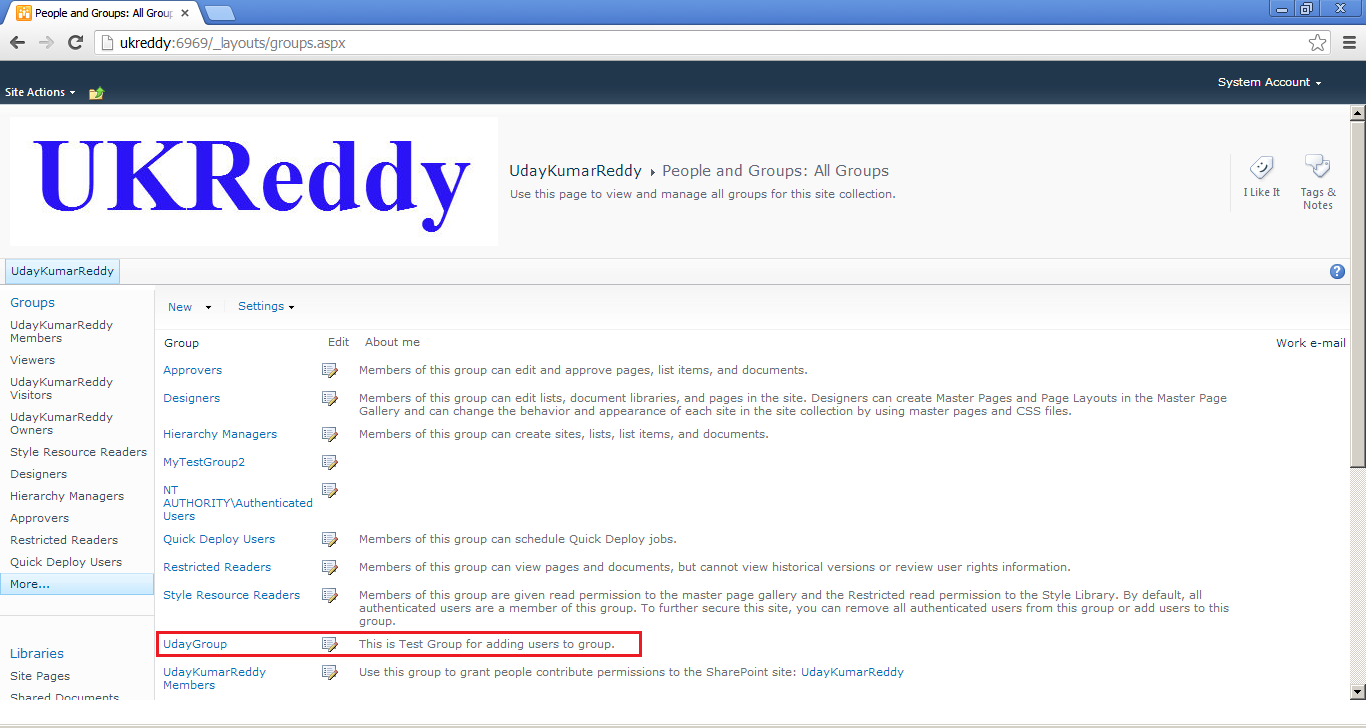
In this example, i wanna show how to create group, assign role to the group and assign a user to the group.

            using (SPSite site = new SPSite("http://UKREDDY:6969/"))
            {
                using (SPWeb web = site.OpenWeb())
                {
                    web.AllowUnsafeUpdates = true;
                    web.SiteGroups.Add("UdayGroup", web.CurrentUser, web.CurrentUser, "This is Test Group for adding users to group.");
                    SPGroup group = web.SiteGroups["UdayGroup"];
                    SPRoleDefinition roleDefinition = web.RoleDefinitions.GetByType(SPRoleType.Contributor);
                    SPRoleAssignment roleAssigment = new SPRoleAssignment(group);
                    roleAssigment.RoleDefinitionBindings.Add(roleDefinition);
                    web.RoleAssignments.Add(roleAssigment);
                    web.Update();
                    SPUser spUser = web.EnsureUser("ukreddysykam\\urkeddy");
                    group.Users.Add(spUser.LoginName, spUser.Email, spUser.Name, spUser.Notes);
                    web.AllowUnsafeUpdates = false;
                }
            }