Sunday, 27 July 2014

Issue: Blog category view not filtering properly in SharePoint 2013 after migration from SharePoint 2010

I have Post list in SharePoint 2010 and whenever user posting a post he has to select a category.
And after posting a post user can see his post and below that post it shows category name also when user clicks on that category it redirects to categories page and shows list of post which are posted under that category.

Everything is working fine in SharePoint 2010, Now i have upgraded my SharePoint environment from 2010 to 2013.

Now the issue is, whenever user clicks on category under any post it is redirecting to categories page but it is showing all posts irrespective of what user selected category.

Here is the solution,

1. Click a category name on the left, or navigate to /BlogName/Lists/Categories/Category.aspx
2. Go into Edit Page mode, and add a Query String (URL) Filter web part.
3. In the web part properties, Filter name = Name, Query String Parameter name = Name (don't change this to anything else, it has to say "Name") Check the box "send empty if there are no values"
4. OK, and remove the filter from the view on the Posts web part.
5. Create a web part connection that connects the Query String URL Filter to the Posts web part, using the "Category" field.


Sunday, 13 July 2014

Error Type: SPSecurityContext: Request for security token failed with exception: System.ServiceModel.ServiceActivationException: The requested service, 'http://localhost:32843/SecurityTokenServiceApplication/securitytoken.svc' could not be activated.

Hi Today when i try to deploy my small app on SharePoint 2013 environment, i got the following error,

Cannot connect to the SharePoint site: http://ukreddy:3430/. Make sure that this is avalid URL and the SharePoint site is running on the local compurter. If you move this project to a new computer or if the URL of the SharePoint site has changed since you created the project, update the Site URL property of the project.


I know that the site is running and up. Am sure something stopping the deployment. So, i checked the log files and i found the bellow exception
"SPSecurityContext: Request for security token failed with exception: System.ServiceModel.ServiceActivationException: The requested service, 'http://localhost:32843/SecurityTokenServiceApplication/securitytoken.svc' could not be activated."


and when i browse to the URL "http://localhost:32843/SecurityTokenServiceApplication/securitytoken.svc
" Then i got the following error in my browser


"Memory gates checking failed because the free memory is less than 5% of total memory. As a result, the service will not be available for incoming requests. To resolve this, either reduce the load on the machine or adjust the value of minFreeMemoryPercentageToActivateService on the serviceHostingEnvironment config element."


Then i came to know that there is an issue with the memory, then i checked task manager and observed that Memory reached more than 95%.


then i killed some tasks and again i browse the URL

Now i can see the page without error.


Then i deployed the solution successfully.

Sunday, 1 June 2014

How to show site column in SharePoint 2013 search refinement panel

Scenario:

I have create one site column of choice type and i use this column in document library/lists.

I have uploaded documents and while uploading i have selected values for that site column.

Now i want to show this site column values in refinement for better search results.

HOW TO DO IT?

Solution:

Here the solution....

1. Create Crawled Property
2. Create Mapped Property and Map to the crawled property/Create a Managed Property from a Crawled Property
3. Modifying refinement panel web part

1. Create Crawled Property:

Crawled properties are metadata information that are extracted from the documents and lists during crawls.

In SharePoint, we no need to create crawled property. when we do full/incremental crawl of content source it will automatically create .

Nothing to do in this step, just run full/incremental crawl on content source.

2. Create Mapped Property and Map to the crawled property/Create a Managed Property from a Crawled Property

Go to Central Administrator --> Application Management ---> Manage Service Applications(under Service Applications) --> Click on Search Service Application.

Click on Content Sources under Crawling and select content source then start full crawl.

After that check crawled property created or not

Go to Central Administrator --> Application Management ---> Manage Service Applications(under Service Applications) --> Click on Search Service Application --> Click on Search Schema which is under Queries and Results

Now Click on Crawled Properties


Now search for column name and you can find crawl property 


Now go to Managed Properties


Click on New Managed Property


a. Specify unique name without spaces and description if any
b. Type: leave this option as default.
c. Searchable: If this managed property you want to use in search just choose this option.

d. Queryable: if you want to query on this managed property like "PropertyName:PropertyValues" then choose this option. Example FileType:doc.


e. This is very important, if you want to use this property in refinement panel then choose "yes-active" option from the choices.

f. To sort results based on this property then choose "Yes-Active" option from the choices.


g. Give some alias name for the property.


h. Now add crawled property to this managed property. Click on Add a mapping, it will open pop and display list of crawled properties, search for crawled property and select crawled property and click on OK.


i. leave remaining options as default and click OK

Now you have created managed property and mapped to crawled property also.

Now go back to search schema and search for newly created managed property and it should be look like this.

Now run full crawl on content source. Go to content sources --> select content source and start full crawl.


3.Modifying refinement panel web part
After the full crawl has completed, The final step is to update the refinement web part on the Search Results page for a Search Site.  The steps are the following:
a. Perform a simple search and it will go to search results page
NOTE: Create new site with enterprise search center template.

b. Now hit the gear on the top right of the page and select Edit Page.

c. On the left, hit the pull down next to the Refinement web part and click “Edit Web Part”.

d. The Properties for the Refinement web part will be on the right so select the Choose Refiners… button.


e. On the list of Available refiners on the left, choose the your managed property and click Add.   


f. Hit OK and that should take you back to the Search Results page where you can perform additional Edits.  Hit OK to the Refinement web Part properties dialog on the right.
g.  Check In your changes by hitting the Check In button from the Ribbon and finally Publish.


Now perform search and you can see your site column values in refinement panel also.


Monday, 26 May 2014

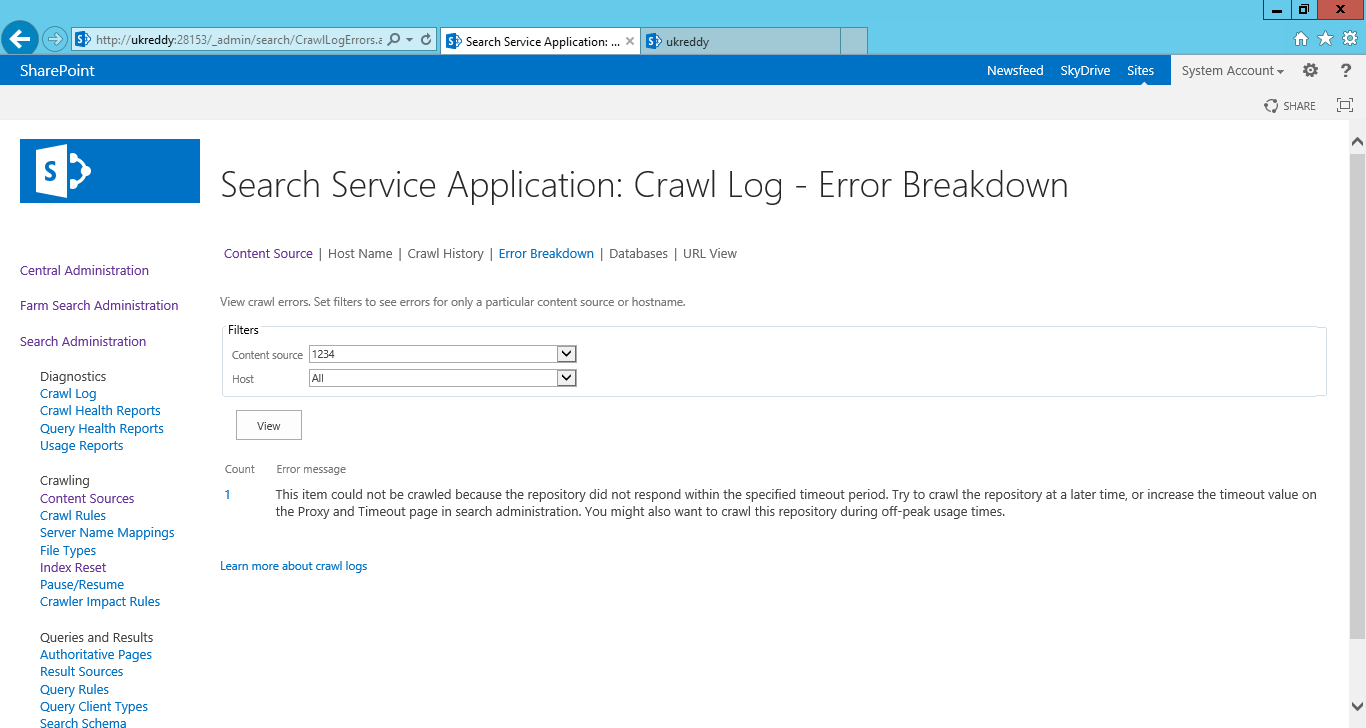
Issue: This item could not be crawled because the repository did not respond within the specified timeout period. Try to crawl the repository at a later time, or increase the timeout value on the Proxy and Timeout page in search administration. You might also want to crawl this repository during off-peak usage times.

Issue: i have done full crawl on my content source.


But when i check my content source crawl log it is showing 0 success and 1 error.


When i clicked on error, it was showing the following message,
"This item could not be crawled because the repository did not respond within the specified timeout period. Try to crawl the repository at a later time, or increase the timeout value on the Proxy and Timeout page in search administration. You might also want to crawl this repository during off-peak usage times."


Solutoin: Increase the timeout value on the Proxy and Timeout page in search administration. Follow the below steps
Go to central admin->Manage service Applications
Click on Search service application.
Go to farm search administration below central administration.
Click on Time out seconds.


Now increase time out here am changing to 120 seconds.


And also IE proxy settings also causes for the issues, for that follow the step

Internet Options>Connections>LAN settings. Uncheck 'Automatically detect settings'.

Now run the full crawl on content source and then check crawl log for that content source.


Monday, 5 May 2014

How to add web part to master page in SharePoint 2013

I have a question, Can we add web part to master page??
Generally we can add web parts in web part zones, But master page doesn't have web part zone.
So can we add web part to master page?


"A Web Part is a server control that provides a specific piece of SharePoint functionality, and a Web Part zone is a container that determines the layout, behavior, and other properties of the Web Parts contained in that zone."

Web Part zones are available on page layouts but not on master pages—the purpose of zones is to allow authors to modify Web Parts, and authors typically don't edit a master page.

This means we can not modify the web parts which are added in master page but we can add web part to master page.

Here my requirement, I have one custom web part, which displays date and time. Now i want to add this web part to master page.

Step 1:

Activate SharePoint publishing infrastructure feature under site collection feature.
Activate SharePoint publishing feature under manage site feature.

Step 2:

Open SharePoint site in SharePoint designer 2013 and check out master page's html page.

Now open SharePoint site in IE, Click on site actions  --> Design Manager


Step 3:

In design manager page, click on Edit Master Pages. It will show master pages, click on your master page which was checked out in previous step.


Step 4:

Click on "Snippets" in master page preview, it will open snippet gallery.


Step 5:

In Snippet Gallery, Click on Other Web parts and select your custom web part or else you can select OTB web part also. Once you select your web part, you can see code under HTML Snippet.


Copy the snippet by clicking on "Copy to clipboard".


Step 6:

I want to show this web part between site title and search box control.

Now open your master page in SharePoint designer 2013 and find "<div class="ms-tableCell ms-verticalAlignTop">
<div id="searchInputBox">" div tag.

Now add one more div tag before these two div tags.

<div class="ms-tableCell ms-verticalAlignTop"> </div>


Then page HTML snippet in this div tag.

<div class="ms-tableCell ms-verticalAlignTop">
<!--CS: Start Clock Snippet-->
<!--SPM:<%@Register Tagprefix="ac401823a"  Namespace="ClockWebPart.VisualWebPart1" Assembly="ClockWebPart, Version=1.0.0.0, Culture=neutral, PublicKeyToken=c9aa41227deb2659" %>-->
<!--MS:<ac401823a:ClockWebpart runat="server" LeftMargin="5" TopMargin="5" Description="Local clock using jQuery" ImportErrorMessage="&#60;%$Resources:core,ImportErrorMessage;%&#62;" Title="Clock" __MarkupType="vsattributemarkup" __WebPartId="{a95b03f7-6800-4eba-8457-99d8d4f6ebeb}" WebPart="true" IsClosed="false" ID="g_a95b03f7_6800_4eba_8457_99d8d4f6ebeb">-->
<!--PS: Start of READ-ONLY PREVIEW (do not modify)-->
<div id="ctl00_g_a95b03f7_6800_4eba_8457_99d8d4f6ebeb" WebPart="true" __WebPartId="{a95b03f7-6800-4eba-8457-99d8d4f6ebeb}" __MarkupType="vsattributemarkup">
</div>
<!--PE: End of READ-ONLY PREVIEW-->
<!--ME:</ac401823a:ClockWebpart>-->
<!--CE: End Clock Snippet-->
</div>


Now save your master page and click on "Preview in browser".


Step 7:

Check in the master page and publish major version then every user can able to see the changes in master page.


Thanks for snippet...  :).

Sunday, 4 May 2014

Tip: Sign in as different/another user in SharePoint 2013

In Microsoft SharePoint Server 2013, you notice that the Sign in as Different User menu option is missing.

Access the SharePoint site by using the following URL
http://ukreddy:1234/_layouts/closeconnection.aspx?loginasanotheruser=true

OR

Start Internet Explorer by using the Run as different user option, and then go to the SharePoint site.

OR

we can add "Sign in as different user" option to menu.
Please follow this link

Error: System.ArgumentException: Value does not fall within the expected range.


When i was trying to activate publishing feature in sitemanager am getting unexpected error.
When i checked log file with corelation id, i have found System.ArgumentException: Value does not fall within the expected range. And also i found dependencies for feature 'PublishingWeb'.

Publishing Feature activation failed. Exception: System.ArgumentException: Value does not fall within the expected range.

Feature Activation: Failed to ensure feature dependencies for feature 'PublishingWeb' (id: '94c94ca6-b32f-4da9-a9e3-1f3d343d7ecb'), exception thrown: System.ArgumentException: Value does not fall within the expected range.  

Then i try to activate feature using powershell command or Sharepoint Management Shell with force.

Here the commands

$siteUrl = "http://ukreddy:3456/"
$siteCollection = Get-SPSite $siteUrl
Enable-SPFeature "PublishingSite" -Url $siteCollection.Url -force
Enable-SPFeature "PublishingWeb" -Url $siteCollection.Url -force