Friday, 6 July 2012

How to count duplicate records in sql table

Here am showing how to count no. of rows have same column values in a table,

SELECT YourColumnCOUNT(*) TotalCountFROM YourTableGROUP BY YourColumnHAVING COUNT(*) > 1ORDER BY COUNT(*) DESC


example:


SELECT EntityName, COUNT(*) TotalCount
FROM tblTest
GROUP BY EntityName
HAVING COUNT(*) > 1
ORDER BY COUNT(*) DESC


if you want to know row value count in a table, like


EntityName
a
b
a
a
b
b
c
d


i want to get result like


EntityName | TotalCount
a                2
b                3
c                1
d                1


then use query like


SELECT EntityName, COUNT(*) TotalCount
FROM tblTest
GROUP BY EntityName
ORDER BY COUNT(*) DESC

How to search External data using BCS


I have created External Content Type using Bussiness Data Connectivity Template from visual studio in my previous Post.Please refer this post.


Now i want show how to configure the search service to index that data and show results in a way that is useful to the end user.


To display search result items we need to setup profile pages.


Profile pages are used to show the detailed information about an external data record. The search service will link its results to the appropriate profile page. If you do not set up a profile page, then the search results will contain a useless link.


how to Create profile page please refer this post.


After creating profile page we need to set this profile page to the external list.


i. Go to central administration --> manage service applications-->bussiness data connectivity services.


ii. Select external content type and click on Configure and specify Host SharePoint site URL.


iii. Click on Create/upgrate from the ribbon.


Now am showing to how to configure the search service to use this ECT while crawling and indexing. The search service uses Content Sources to identify and control the content it needs to search. You will also need to set the account to use for the crawl operation. This account should be the same as the one you used to set permissions in the Business Data Connectivity 


service and it must have read access to the AdventureWorks database.


1. Go to Central Administration, Click on "Manage Service applications".


2. Click on "Search service application" from the list of services.


3. in the left panel, click Content Sources under Crawling.


4. Click on "New Content Source".


5. Specify Name of the Content Source, select "Line of Business Data" as Content source type, select external content type, and check Start full crawl of this content source. Click on  "OK".


6. In the left panel, click on Scopes which is under "Queries and Results".


7. Click on New Scope.


8. Specify Scope name and click on "OK".


9. in the list fo scope click on Add Rules to the newly added scope.


10. Select Content source radio button in Scope rule type and select newly added content source type from dropdown in content source. click on "OK".


newly added scope will be available for search after 15 mins.


11. Now go to your site, click on "site actions --> site settings".


12. Click on Search scopes which is under site collection administration.


13. Click on Display groups.


14. Click on "Search Dropdown".


15. mark checkbox for the newly added scope and set default scope.


16. Click on Advanced search.


17. Mark checkbox for the newly added scope.


here am showing external data ..


18. Now go to home page , enter search keyword in search control and press enter.


19. it will display result based on search keyword.

20. when you click on search result link it will show detailed information for that link in profile page.


Thats it..


Your suggestions and comments are welcome.

How to create profile page in SharePoint 2010


Creating a site for profile pages


1. Open the site collection you will be using with Internet Explorer.


2. On the Site Actions drop-down, click New Site.


3. Select the Blank Site template.


4. In the right pane, click the More Options button.


5 .Type "Search Results Details" in the Title box.


6. Type "ProfilePages" in the URL name box.


7. In the Navigation section, click the No radio button for Display this site on the top link bar of the parent site?


8. Click Create.


9. The URL that you see is the one you will use for the next step. For example, if the URL for the profile page site is "http://<<servername>>:<<portno>>/ProfilePages/default.aspx" then you will specify the location of the profile pages as "http://<<servername>>:<<portno>> /ProfilePages" as the host URL.

Thursday, 5 July 2012

How to Crawl and Search File System in SharePoint 2010 Search


Senario: i have created on Shared Folder in SharePoint installed server. i want to search  for searchkeyword from this SharedFolder location also. i.e i want to crawl filesystem and display search results from SharedFolder location


Solution:


1. First create one Shared Folder location.
\\udaykumarreddy\FileShare_Uday


2. Now Open Central Administration , Click on Manage Service applications which is under Application Management


3. Click on Search Service Application from the list of Services.


4. Click on Content Sources which is listed under Crawling on left side of the page.


5. Click on New Content Source.


6. Specify New Content Source Title(FileSysSearch), Content Source Type (select File Shares), Start Addresses (\\udaykumarreddy\SharedFolder from step1), and check Start Full Crawl.Now Click on "OK".


Note if you want to schedule full or incremental crawl , can schedule by click on "Create Schedule".


7. Full crawl will start and takes few minutes times.


8. After completion of crawl we can check crawl is completed successfully or not. Click on "Crawl Log" under Crawling


9. Now click on Scopes which is under "Queries and Results".


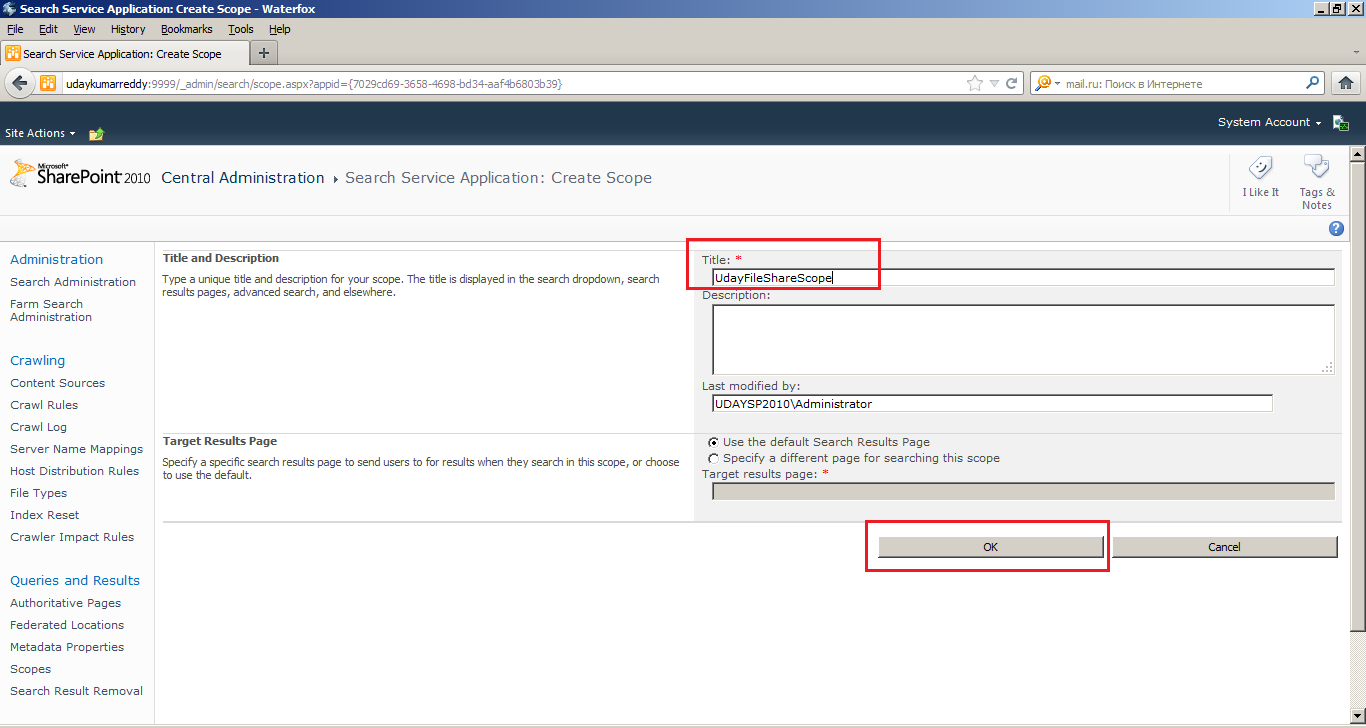
10. Click on New Scope


11. Specify Scope Title and Description.Then Click on "OK".


12. Now it display all scopes and for the newly created scope we need to add rule, so click on "Add rules".


13. Specify Scope rule type(as Content Socure), Content Source(select Content Source name from dropdown), and Click on "OK".


14. After adding rule it will takes maximum 15 minutes time to this search scope available in search results.


15. Now Go to your site, Site Actions-->Site Settings.


16. Click on Search Scopes which is under Site collection Administration.


17. Click on Display group.


18. Click on Search Dropdown in Display group page.


19. by default newly added scopes are not checked. so select your scope and check.


20. Now click on "Advanced Search".


21. by default newly added scopes are not checked. so select your scope and check.


22. Now go to your site , select your scope from the search dropdown and specify search keyword in text box then press enter.


23. Now search result page will display search results based on search keyword.


That's it.. 


let me know any suggestion or queries on this topic..


Thanks.

How to create best bet in SharePoint 2010 Search


Best bets essentially allows you to inject your chosen content at the top of search queries for certain keywords. As an example on my test bed site when ever someone types 'ukreddy', I want to return three key items at the top. These three items will be:


link to my twitter feed link i.e  https://twitter.com/#!/s_ukreddy
link to my blog i.e http://ukreddysharepoint2010.blogspot.in
link to my facebook i.e http://www.facebook.com/s.ukreddi


Follow these types:


1. Go to your site, select Site Actions-->Site Settings.


2. Click on Search Keywords.


3. Click on Add Keyword.


4, Enter Keyword Phrase.


5. We can alose add synonyms to keyword. that means if we search with synonyms word we will get same result as we get for the search keyword.


6. Click on Add Best Bet link, It wil open Add Best Bet window.


5. Specify URL for the best bet (i.e https://twitter.com/#!/s_ukreddy) and also specify Title , Description. Then Click on "OK".


6. Now again click on Add Best Bet link.


7. Specify URL for the best bet(i.e http://ukreddysharepoint2010.blogspot.in) and also specify Title , Description. Then Click on "OK".


8. Now again click on Add Best Bet link.


9. Specify URL for the best bet(i.e http://www.facebook.com/s.ukreddi) and also specify Title , Description. Then Click on "OK".


10. Specify Publishing Start Date,End Date and Clink on "OK".


11. Now go to your site and search for the keyword(i.e 'ukreddy'). all above three link will come on top of the search result with star mark.

Wednesday, 4 July 2012

How to Search internet site or blog in SharePoint 2010


1. Go to Central administration--> manage service applications under application management --> search service application


2. Click on Content Source under Crawl heading which is in left side panel.


3. Click on New Content Source,


specify Content source name, Content source type i.e website, Start Addresses, and check start full crawl's check box then click on "OK".


Content source starts crawling.


4. After completion of crawl, click on scopes under Queries and Results which is in left side panel.


5. Click on New Scope.


6. Specify Title and description of scope , Click on "OK".


7. After adding scope we need to add rule to the scope. so Click on 'Add rules'.


8. Specify Scope rule type as Content Source, select Content source from dropdown (here it is Udayblog) then Click on "OK".


after adding rule it will take some time to this scope available in search.


9. Now go to your site's site settings ,


 click on Search Scopes which is under Site Collection Administration.


10. Click on Display groups.


11. Select Search Dropdown , click on 'Edit display group'.


12. now you can find your search scope which was created in central administration and check the scope, then click on "OK".


13. now select Advanced Search, click on 'Edit display group'.


14. repeat step 12.


15. now go to your top level site and you can find search control on top right site. select your scope from dropdown and type your search key word and press 'Enter'.


now you can find the search result from the internet site.


That's it...