Showing posts with label powershell. Show all posts

Thursday, 15 October 2015

How to download deployed solution in SharePoint

Hi,

Usually, we develop solution files and give it to admins for deployment.
Admin guys deploy the solution by adding it to central admin. 

If suppose, Admin wants to move SharePoint from one server to another server then they have to communicate to development team then they will collect all the solution files. Once they got all the solution files then only they can again deploy all the solution in the new server. By that time, developers may miss some solution or they take some time to collect all the solutions. To remove this extra step, admins can also collect all the solutions which are deployed by following the below steps.


1.       Create new folder in C drive and name it as “solutions”.
2.       Now open SharePoint 2013 management shell as administrator and run the below script

$FolderPath = "c:\FormSolutions" 
foreach ($solution in Get-SPSolution) 
   $id = $Solution.SolutionID 
   $title = $Solution.Name 
   $filename = $Solution.SolutionFile.Name 
   $solution.SolutionFile.SaveAs("$FolderPath\$filename"
}

Now all sharepoint solutions deployed from central admin are available at C:\FormSolutions folder.

Enjoy J

Wednesday, 6 May 2015

How to download all deployed wsp solution files in SharePoint


Hi,

Usually SharePoint admin guys takes backup of content DB and all physical files if they want to create replica of existing SharePoint site when actual site is down.

But that will not complete solves the solution, if there are any custom solutions already deployed.

So, admin guys needs those solution files.
To get those solution files which are deployed in SharePoint use the following power shell command to get all deployed solution files.

$pathName = "<PATH to Save files>"
foreach ($solution in Get-SPSolution)  
{
     $solid = $Solution.SolutionID
     $title = $Solution.Name
     $filename = $Solution.SolutionFile.Name
     $solution.SolutionFile.SaveAs("$pathName\$filename")
}

Monday, 12 January 2015

Error Type: DataForm Web Part displays "Unable to display this Web Part"

There is one scenario,

1. Create a list or library in SharePoint 2010. 
2. Open the list / library in SharePoint Designer. 
3. Close and hide the XSLTListView Web part on the page.
4. Insert a DataForm web part on the page. 

The page is working fine in SharePoint 2010 but once you migrate the site from SharePoint 2010 to SharePoint 2013 and If the list contains a large number of columns or custom XSL has been applied to the DataForm web part the following error message may be displayed:

"Unable to display this Web Part. To troubleshoot the problem, open this Web page in a Microsoft SharePoint Foundation-compatible HTML editor such as Microsoft SharePoint Designer. If the problem persists, contact your Web server administrator."

You can also see System.StackOverflowException errors in the SharePoint log.


In SharePoint 2013, Microsoft has reduced the timeout for XSLT transformation from 5 seconds to 1 second without giving the administrator the option of increasing it manually via Powershell.  The reduction is a securtity measure to reduce the risk of successfull DoS attacks. .

The timeout essentially causes any modified XSLTListViewWebPart and XSLTDataViewWebParts to error intermittently when viewed in the browser.

We can fix the above error using Powershell script.
Below script is used to make the change to the Timeout value.  Changing it to 5 seconds worked for us and the webparts are now showing fine.

PowerShell to set XsltTransformTimeOut

$farm = Get-SPFarm

$farm.XsltTransformTimeOut = 5

$farm.Update()


Sunday, 31 August 2014

Error Type: Error occurred in deployment step 'Add Solution': A feature with ID has already been installed in this farm. Use the force attribute to explicitly re-install the feature.

When i was working with migration projects, We have several SharePoint 2010 solutions which we want to deploy to SharePoint 2013 with Visual Studio 2012 running on Windows Server 2012. I get the error "A feature with ID 15/... has already been installed in this farm. Use the force attribute to explicitly re-install the feature."

Solution for this, we need to deploy the solution forcefully and this can be done two ways.

1. From visual studio we can deploy the solution forcefully
2. Using power shell command also we can deploy the solution forcefully.


1. Using Visual Studio

Go to your Features in your project.

i. Open the feature.template.xml file

ii. add AlwaysForceInstall="TRUE" to the below tag

<Feature xmlns="http://schemas.microsoft.com/sharepoint/" AlwaysForceInstall="TRUE">

Now try to deploy the code.

(OR)

i. Click on your project
ii. Go to Features and double click on features
iii. now press F4 to view properties
iv. now change "Always Force install" from false to true.
v. now build and deploy the solution.


2. Using Power Shell

In PowerShell, you can use the -Force parameter of the Install-SPSolution commandlet in order to force the installation of a solution:

Install-SPSolution -Identity <solution_file> -GACDeployment -Force

Friday, 28 February 2014

Error Type: The feature is not farm level feature and is not found in a site level defined by the url.


I have one .wsp file which is created and deployed through visual studio in development environment.
Now am trying to move that .wsp file to testing/production environment.
I have taken one .wsp file and added/installed the .wsp in testing/production environment using powershell.
Now i tried to activate the feature with the following command
Enable-SPFeature -Identity "AddLinkToSiteSettings Feature1" -URL "http://dev01:9999"
but am get the following error
"The Feature is not a Farm Level Feature and is not found in a Site level defined by the Url"


However I can see the feature in site settings/site feature page.


Solution for this is use feature id instead of feature name.

Enable-SPFeature -Identity e4f775d5-e927-4da5-8f92-7f7ce49c3703 -URL "http://dev01:9999"


Thats it...


Monday, 24 February 2014

How to take backup and restore subsite and list using powershell

Example for Subsite backup and restore:

Export-SPWeb -Identity http://spsdemo:9999/Subsite1 -Path "D:\Exports\Subsite1"
Import-SPWeb http://spsdemo:6666/Subsite2 -Path "D:\Exports\Subsite1.cmp"


Example for list backup and restore:

Export-SPWeb http://spsdemo:9999/ -ItemUrl "/Lists/Test%20docs/" -Path "D:\Exports\TestDoc"
Import-SPWeb -Identity http://spsdemo:6666 -Path "D:\Exports\TestDoc.cmp"

Friday, 19 October 2012

How to move site collection from one web application to another web application using powershell


There are some situations where you want to move your site collection from one web application to another web application or where you want to change site collection port number or site collection path.

1. Take a backup of site collection from old webapplication
2. Restore backup in new web application.
3. Remove site collection from old web application
4. Delete backup file.

Here is my requirement, i have two web applications

1. http://ukreddy:2727 in this i have one root site collection
2. http://ukreddy:3636 This is my new web application 

now i want to move site collection from http://ukreddy:2727 web application to http://ukreddy:3636 web application or i want to change site collection port number.

In my site collection i have added some documents to document library, added events to calendar and add tasks to task list for testing.


1. Take backup of site collection 

Take backup of site from old web application(i.e http://ukreddy:2727).

Backup-SPSite -Identity http://ukreddy:2727 -Path "C:\\MoveSiteCollection.bak" 

or

Backup-SPSite -Identity http://ukreddy:2727 -Path "C:\\MoveSiteCollection.bak" -force

Note: -force is swicht parameter and it is used to create/overwrite if .bak file already exist.

This cmdlet will create .bak file in  "C:\\" path with the given name in cmdlet.


2. Restore backup file to new web application(i.e http://ukreddy:3636):

Here assuming that http://ukreddy:3636 web application created and root site collection not yet created.

Restore-SPSite -Identity http://ukreddy:3636 -Path "C:\\MoveSiteCollection.bak" 


or 

Restore-SPSite -Identity http://ukreddy:3636 -Path "C:\\MoveSiteCollection.bak"  -Confirm:$false


if you use -Confirm:$false parameter then it wont ask your confirmation for restore of site collection. Simply restore site collection.

This cmdlet will create root site collection in http://ukreddy:3636 as is it which in http://ukreddy:2727


3. Remove site collection 

Remove site collection from old web application.

Remove-SPSite -Identity http://ukreddy:2727 -Confirm:$false


4. Remove backup file

Remove the backup file from the path where we given path for backup.

Remove-Item "C:\\MoveSiteCollection.bak"


Here the code snippet copy the snippet and save it as .ps1 and run the .ps1 file in powershell....

###############################################################################

#Get the from Site Collection URL
$fromURL = "http://ukreddy:2727"
#Get the to Site Collection URL 
$toURL = "http://ukreddy:3636"

#Location to the backup file directory to store Site Collection backup files
$backupPath = "C:\\test.bak"

#Backing up Site Collection prior to moving
Write-Host "Backing Up Site Collection…."
Backup-SPSite $fromURL -Path C:\test.bak -force

#Removing Site Collection from old web application path
Write-Host "Removing Site Collection from old managed path location…"
Remove-SPSite -Identity $fromURL -Confirm:$false

#Restoring Site Collection to new Managed Path
Write-Host "Restoring Site Collection to new managed path location…"
Restore-SPSite -Identity $toURL -Path c:\test.bak -Confirm:$false

#Remove backup files from the backup dirctory
Remove-Item c:\test.bak

###############################################################################


Wednesday, 17 October 2012

How to create,get and delete managed path in SharePoint 2010 using PowerShell

In this article we will see 

1. How to get all managed paths 
2. How to create managed path
3. How to delete defined managed path

1.Get all managed paths in a web application:

a. Click On the Start menu, click All Programs.
b. Click Microsoft SharePoint 2010 Products.
c. Click SharePoint 2010 Management Shell.
Type the following command.

Get-SPManagedPath -WebApplication http://ukreddy:8998


and press enter.


2. Create managed path in a web application :

Now type the following command.

New-SPManagedPath "/newmanagedpath" -WebApplication http://ukreddy:8998


and press enter.


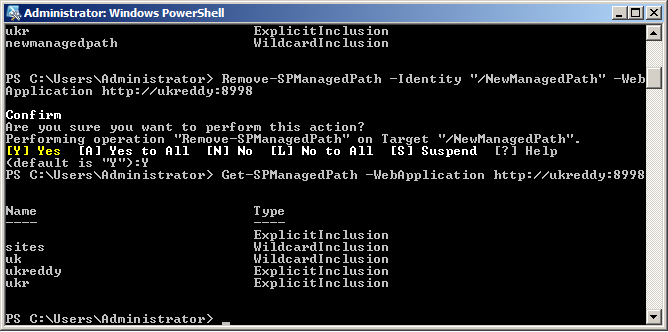
Now we can use get all managedpaths command to see all existing managed paths in a web application.

3. Delete managed path in a web application:

we can also delete managed path in a web application using the following command,

Remove-SPManagedPath -Identity "/newmanagedpath" -WebApplication http://ukreddy:8998


The above command will promt a message, asking end user confirmation to delete managed path.


if u dont want to prompt confirmation message use the following command.


Remove-SPManagedPath -Identity "/newmanagedpath" -WebApplication http://ukreddy:8998 -Confirm:$false


Wednesday, 10 October 2012

How to remove web application using PowerShell 2010


Method 1:

Remove-SPWebApplication -Identity http://ukreddy:6789

This cmdlet will ask for user's confirmation.


Remove-SPWebApplication -Identity http://ukreddy:6789 -Confirm:$false

This cmdlet won't ask for user's confirmation.


This cmdlet permanently removes the Web application at http://ukreddy:6789. This command does not remove the content databases or the IIS Web site.

Method 2:


Remove-SPWebApplication -Identity http://ukreddy:6789 -DeleteIISSite -RemoveContentDatabase


This cmdlet will ask for user's confirmation.


Remove-SPWebApplication -Identity http://ukreddy:6789  -Confirm:$false -DeleteIISSite -RemoveContentDatabase

This cmdlet won't ask for user's confirmation.


This cmdlet permanently removes the Web application at http://ukreddy:6789. This command also remove the content databases or the IIS Web site.


Thursday, 4 October 2012

Trick and Tip: How to get list of site collections details in each content databasse in SharePoint using PowerShell


Here another powershell cmdlet to know list of site collections details in each content database using powershell cmdlets

for this i used the following powershell cmdlet

Get-SPContentDatabase | %{Write-Output "ContentDB is - $($_.Name)"{sites are}; foreach($site in $_.sites) {write-Output $site.url}{"-----"}}


and output will look like this


Trick and Tip: How to know associated content databases to each web application in SharePoint using powershell


Here one small cmdlet to know content databases details for each web application in my SharePoint.
For this am going to use the following powershell cmdlet
"Get-SPWebApplication | %{Write-Output "`n- $($_.url)"; foreach($cd in $_.contentdatabases){Write-Output $cd.name}} "
and OutPut is like this