Showing posts with label SharePoint. Show all posts

Tuesday, 19 January 2016

How to retrieve all items from list (having more than 5000) using CSOM?

Hi All,


As we know that by default the Threshold limit to retrieve litem from a list is 5,000 and OneDrive for Business has a 20,000 limit.
So any list with more then 5,000 items can cause some problems in your apps.


Luckily CSOM allows you to retrieve all items by using the ListItemCollectionPostion. Every time you execute a query for list items, you will be presented with a ListItemCollection that contains the ListItemCollectionPosition.


If that ListItemCollectionPosition is not null you can use that position to execute the same query again, however with a different starting point. This way you can ‘loop’ through all items in a list and construct an object that contains all your items. By putting everything in a while loop you are making sure that you will retrieve all items.


string siteUrl = "http://MyServer/sites/MySiteCollection";
ClientContext clientContext = new ClientContext(siteUrl);
Web site = clientContext.Web;
List targetList = site.Lists.GetByTitle("Announcements");
CamlQuery query = new CamlQuery();
query.ViewXml = "<View><ViewFields><FieldRef Name='Title'/></ViewFields><RowLimit>10 </RowLimit></View>";
ListItemCollection collListItem = targetList.GetItems(query);
clientContext.Load(collListItem);
clientContext.ExecuteQuery();
string msg = "Titles, 10 at a time:\n";
foreach (ListItem myListItem in collListItem)
msg += "\nTitle=" + myListItem["Title"];
Console.WriteLine(msg);
ListItemCollectionPosition position = collListItem.ListItemCollectionPosition;
do
{
msg = "";
query.ListItemCollectionPosition = position;
collListItem = targetList.GetItems(query);
clientContext.Load(collListItem);
clientContext.ExecuteQuery();
position = collListItem.ListItemCollectionPosition;
foreach (ListItem myListItem in collListItem)
msg += "\nTitle=" + myListItem["Title"];
Console.WriteLine(msg);
} while (position != null);


Monday, 18 January 2016

Limitations with RunWithElevatedPrivelege in SharePoint

Hi all,


I just want to share couple of things about security issues with RunWithElevatedPriveleges in SharePoint.


Elevated Privilege can be used to bypass or work with security, and can be performed either through SPSecurity or through impersonation techniques involving the SPUserToken and the SPSite class.


Avoid using SPSecurity.RunwithElevatedPrivilege to access the SharePoint object model. Instead, use the SPUserToken to impersonate with SPSite. If you do use SPSecurity.RunwithElevatedPrivilege, dispose of all objects in the delegate. Do not pass SharePoint objects out of the RunwithElevatedPrivilege method.


Only use SPSecurity.RunwithElevatedPrivilege to make network calls under the application pool identity. Don't use it for elevation of privilege of SharePoint objects.


Here the sample code to show what is the issue with RunWithElevatedPrivileges.


SPList taskList=null;
SPSecurity.RunWithElevatedPrivileges(delegate()
{
      SPSite elevatedSite = SPContext.Current.Site;

      using (SPWeb elevatedWeb = elevatedSite.OpenWeb())
      {
           taskList = elevatedWeb.Lists["Tasks"]
      }
   }
});
//This code will succeed even outside the block as it is accessed via elevated SPWeb. Hence Security Risk.
taskList.Delete();


Always use the SPSite constructor with an SPUserToken to create an elevated privilege security context in SharePoint.


This is most recommend way and best practice  to perform impersonation in context of SharePoint. However,When using SPUserToken, you need ensure that the user exists whom you are impersonating, and that user has the proper permissions. In production scenarios, you may not know the user in advance and this technique may not work
Below is the example to impersonate SHAREPOINT\SYSTEM account.
SPWeb oWeb = SPContext.Current.Web;
SPUserToken token = oWeb.AllUsers[@"SHAREPOINT\SYSTEM"].UserToken;
using (SPSite elevatedSite = new SPSite(oWeb.Site.ID, token))
 {
    using (SPWeb elevatedweb = site.OpenWeb())
     {
      // Perform administrative actions by using the elevated site and web objects.
      // elevatedWeb.CurrentUser.LoginName gives SHAREPOINT\system
      // WindowsIdentity.GetCurrent().Name gives current logged-in username i.e. SPContext.Current.Web.CurrentUser.LoginName.
      // Hence,Only SharePoint Security context is changed while Windows Security context is not changed.
     }
 }


If you see the code above, WindowsIdentity.GetCurrent().Name is same as the Name of current user making the request which is SPContext.Current.Web.CurrentUser.


So  any call to external systems like DB or WebServices will be made by windows account of the current user. It succeeds or not depends on the permissions that the user have on that external system.


If you want make network calls under the application pool identity  or you don’t have a valid and known SPUser to retrieve SPUsertoken then SPSecurity.RunWithElevatedPrivileges is the only choice.


And also the tokens time out after 24 hours, so they can be used in the code that needs to impersonate users in the case of workflow actions or asynchronous event receivers occurring within 24 hours.After the  SPUserToken object is returned to the caller, it is the caller’s responsibility to not use the token after it is expired.
The token timeout value can be set by using the Windows PowerShell console or stsadm.
   
stsadm -o setproperty -propertyname token-timeout -propertyvalue 720

Wednesday, 6 May 2015

How to download all deployed wsp solution files in SharePoint


Hi,

Usually SharePoint admin guys takes backup of content DB and all physical files if they want to create replica of existing SharePoint site when actual site is down.

But that will not complete solves the solution, if there are any custom solutions already deployed.

So, admin guys needs those solution files.
To get those solution files which are deployed in SharePoint use the following power shell command to get all deployed solution files.

$pathName = "<PATH to Save files>"
foreach ($solution in Get-SPSolution)  
{
     $solid = $Solution.SolutionID
     $title = $Solution.Name
     $filename = $Solution.SolutionFile.Name
     $solution.SolutionFile.SaveAs("$pathName\$filename")
}

How to check in all checked out files in a SharePoint list using Power shell

Hi,

I have a SharePoint list which has having more than 10 folder and many sub folder in side each folder.

Again each have subfolders and document. Most of the documents are checked out.

Now i need to check in all the checked out files its big task for me to going to each document and checkin and it will takes me days.

I was searching for any other alternatives, so using content structure i can check in multiple documents at a time but i can do it at folder level. Again it will takes more time to check in all the files.

Now, again started searching for another alternative and came up with powershell script.

I got the script and am sharing that script.

*****************************Start of  Script **********************************

[system.reflection.assembly]::LoadWithPartialName("Microsoft.Sharepoint")

$site = New-Object Microsoft.SharePoint.SPSite("http://uday:43662")

$root = $site.allwebs[0]

$folder = $root.GetFolder("Shared Documents")

#============================================================

# Function Set-CheckInFolderItems is a recursive function

# that will CheckIn all items in a list recursively

#============================================================

function Set-CheckInFolderItems([Microsoft.SharePoint.SPFolder]$folder)

{

    # Create query object

    $query = New-Object Microsoft.SharePoint.SPQuery

     $query.Folder = $folder
  
    # Get SPWeb object

    $web = $folder.ParentWeb
  
    # Get SPList

    $list = $web.Lists[$folder.ParentListId]

    # Get a collection of items in the specified $folder

    $itemCollection = $list.GetItems($query)

    # If the folder is the root of the list, display information

    if ($folder.ParentListID -ne $folder.ParentFolder.ParentListID)

    {
         Write-Host("Recursively checking in all files in " + $folder.Name)
     }

    # Iterate through each item in the $folder

    foreach ($item in $itemCollection)

    {

        # If the item is a folder

        if ($item.Folder -ne $null)

        {

            # Write the Subfolder information

            Write-Host("Folder: " + $item.Name + " Parent Folder: " + $folder.Name)

            # Call the Get-Items function recursively for the found sub-solder

            Set-CheckInFolderItems $item.Folder

        }

        # If the item is not a folder

        if ($item.Folder -eq $null)

        {

            if ($item.File.CheckOutType -ne "None")

            {

                if ($item.File.Versions.Count -eq 0)

                {

                    # Check in the file

Write-Host "Check in File: "$item.Name" Version count " $item.File.Versions.Count -foregroundcolor Green

                    $item.File.CheckIn("Bulk check in By Administrator")

                }

            }

        }

    }

    $web.dispose()

    $web = $null

}

Set-CheckInFolderItems $folder

******************************  End of Script *************************************

Saturday, 21 March 2015

SharePoint 2013 Document Library Drag and Drop option not showing in IE

One of new feature in SharePoint 2013 is the ability to drag and drop files into document libraries. This is useful for adding multiple documents to a library and removes the need to open the library in explorer view.


The reason for drag and drop not working and your document library looking like the above screen shot is due to two reasons:
1. You are using Internet Explorer 9 or lower.
2. You don’t have any Office 2013 components installed.

Resolution:

1. This is due to the fact that the drag and drop functionality uses HTML5. Installing Office 2013 will add an ActiveX control to allow you to use this drag and drop functionality in older browsers.
2. If you were to upgrade to IE10 or IE11 the HTML5 would be handled and the drag and drop would be available regardless of whether or not Office 2013 is installed.


Reference link

Sunday, 31 August 2014

Error Type: Error occurred in deployment step 'Add Solution': A feature with ID has already been installed in this farm. Use the force attribute to explicitly re-install the feature.

When i was working with migration projects, We have several SharePoint 2010 solutions which we want to deploy to SharePoint 2013 with Visual Studio 2012 running on Windows Server 2012. I get the error "A feature with ID 15/... has already been installed in this farm. Use the force attribute to explicitly re-install the feature."

Solution for this, we need to deploy the solution forcefully and this can be done two ways.

1. From visual studio we can deploy the solution forcefully
2. Using power shell command also we can deploy the solution forcefully.


1. Using Visual Studio

Go to your Features in your project.

i. Open the feature.template.xml file

ii. add AlwaysForceInstall="TRUE" to the below tag

<Feature xmlns="http://schemas.microsoft.com/sharepoint/" AlwaysForceInstall="TRUE">

Now try to deploy the code.

(OR)

i. Click on your project
ii. Go to Features and double click on features
iii. now press F4 to view properties
iv. now change "Always Force install" from false to true.
v. now build and deploy the solution.


2. Using Power Shell

In PowerShell, you can use the -Force parameter of the Install-SPSolution commandlet in order to force the installation of a solution:

Install-SPSolution -Identity <solution_file> -GACDeployment -Force

How to change the user display name in SharePoint

I have one user whose name enter wrongly in Active Directory and that user display name showing as wrongly. The user  information has been changed in the Active Directory and AD synchronising appears to be running every night.

But still user display name showing incorrectly.

I have worked on this couple of days and i got two solutions for this.

Solution 1 - Using Database

http://msdn.microsoft.com/en-us/library/dd588089%28office.11%29.aspx

Generally users info of a web application saved in UserInfo table of respective content database.


Here the query to get user details using login name


Here ukreddy is the domain and uday is the user login name

Now we are going to update user display name i.e. tp_Title is the display name in SharePoint

now user display name changed


Solution 2 using SharePoint object model:

Here the method to update user information

        public static void UpdateUserInfo(int userId, string basepath, string displayName)
        {
            SPWebApplication webApp = SPWebApplication.Lookup(new Uri(basepath));
            SPSiteCollection siteCollections = webApp.Sites;
            foreach (SPSite siteCollection in siteCollections)
            {
                try
                {
                    using (SPWeb web = siteCollection.RootWeb)
                    {
                        var user = web.SiteUsers.Cast<SPUser>().FirstOrDefault(u => u.ID == userId);
                        if (user != null)
                        {
                            if (displayName.Length > 0)
                            {
                                user.Name = displayName;
                                user.Update();
                            }
                        }
                    }
                }
                finally
                {
                    if (siteCollection != null)
                    {
                        siteCollection.Dispose();
                    }
                }
            }
        }

After changing through code here the screen shot for updated user display name

Tuesday, 9 October 2012

How to create page layout with code behind file in visual studio for SharePoint


In my previous post , have shown how to create page layout content type.

Now once again showing how to creating page layout and after creating pagelayout , adding  textbox,buttons and label to pagelayout and also add click events to the buttons, when the user clicks the button a messages will be display in labels.


1. Open Visual Studio 2010 -> Create new Project.

2. Select 'Content Type' Template and specify Project name, Click on 'OK'.

3. Then Specify URL for debugging and select 'Deploy as farm solution' then Click on 'Next'.

4. Select Parent Content Type for the custom page layout i.e 'Page' then Click on Finish.

5. It will automatically Open Elements.xml of Content Type, Change Name of content type if need and add FieldRef with the name of PublishingPageContent'.

6. Here will add New Module to the project.
right click on project--> add new item --> select Module template and give a name.


7.By default module template contain simple.txt file, you can rename simple.txt to pagename.aspx or delete simple.txt and right click on module--> add new item --> select Text file Template and name it as 'Pagename.aspx'.


8. Now open Elements.xml file which is in Module folder,
do the following changes.

a. Add URL to Module tag as Url='_catalogs/masterpage'. This is for deploy the page layout in _catalogs/masterpage path.

b. In File tag's Url attribute should contain .aspx only and add Type attribute as Type="GhostableInLibrary".

c. Now add 3 Property tag under File Tag, Named as ContentType,Title, and PublishingAssociatedCOntentType
<Property Name="ContentType" 
Value="$Resources:cmscore,contenttype_pagelayout_name;"/>
(Here No need to change this tag, simple copy and paste.)
<Property Name="Title" Value="Page Layout Title"/> here change value attribute value.
<Property Name="PublishingAssociatedContentType" Value=";#<Name of the ContentType which is in Elements.xml which is in ContentType folder>;#<ID of ContentType which is in Elememnts.xml of Content Type folder> "/>


9. A really cool capability of page layouts is that you can code them just like any ASP.NET page, including server-side code.  In the same folder as your .ASPX (in the Module folder), add a new class.

Right Click on PageLayout Module folder --> add --> Class.

10. Give proper class name and click on 'OK'.

11. Now add two references to the project
a. System.Web
b. Microsoft.SharePoint.Publishing

12. Add 'Using System.web.UI.WebControls;' namespace.

13. Inherit 'Microsoft.SharePoint.Publishing.PublishingLayoutPage'.

14. and Add public keyword before Class keyword.

15. In this example , am adding one Text box, two buttons and two labels.In first button click event will display current date and time in one label in second button click will display message "hello," along with textbox value in label two.

finally pagename.aspx.cs file will looks like this

16. Now open <pagename>.aspx page which is in module folder and add the following code.

Note: Textbox,button and label variable's name in .cs file and Textbox, button and label tag's ids should be same and OnClick Events containsFunction Names these functions are available in aspx.cs file.

$SharePoint.Project.AssemblyFullName$ that is used, The compiler will automatically replace this with the 4-part name of our assembly.
(The complete code for this solution is attached to the post.)

17. Now here going to add safe control.

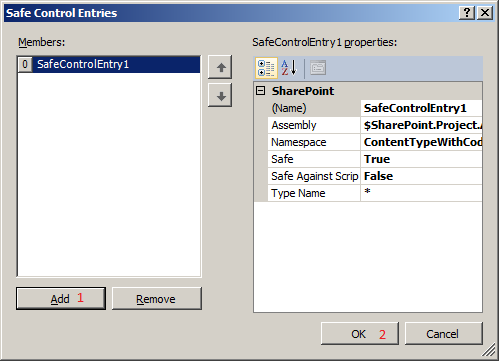
Click on PageLayout Module and press F4 and Click on Safe Controls Collection, That will bring up a new window that makes it easy to define a new safecontrol entry.


18. Now Click on 'Add' and 'OK' buttons. No need to change any value.

19. The content type will be deployed to the site collection, while the page layout is deployed to the master page gallery in a single web.  Therefore, we need two separate features scoped differently.

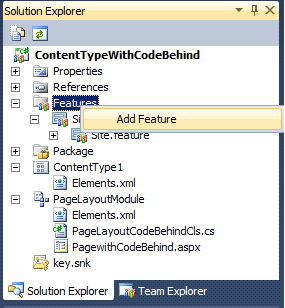
Now right click on Features Folder, by default we have one feature,delete default feature and add new feature.

20. Rename newly add feature to 'Site' and Change Title,Description and set Scope to 'Site' and add ContentType to 'Items in the feature'. look at the screen shot.

21. Now add another feature and rename it 'web' and change Title, Description and set Scope to 'Web' and add Page layout module to 'Items in the feature'.


22. Right click on Package and select 'View Designer' then u can see two features which are avail in the package.


23. Now deploy the project.

24. After successfully deployment of the project, you can see the newly added page layout in "_Catalogs/master" path.

go to site --> Site Actions --> Site Setting--> Master pages and page layouts which is under Galleries.

Now u can see newly added pagelayout in list of page layouts.

25. Now we will try to create new page with newly added content type.

Go to create new page(i.e publishing page) specify page name, description and select newly add pagelayout then click on 'Create'.

26. Finaly the page looks like this.

27. Click on 'Get Time' Button it will display current date and time in label.

28. Now enter some text in text box and click on 'Click Me' button, it will display message as "Hello, <textbox text> !!!" in the second label.


Let me know if u have any queries or suggestions. catch me here
Here the complete source code...
Reference: MSDN Blog