In my previous post , have shown how to create page layout content type.
Now once again showing how to creating page layout and after creating pagelayout , adding textbox,buttons and label to pagelayout and also add click events to the buttons, when the user clicks the button a messages will be display in labels.
1. Open Visual Studio 2010 -> Create new Project.
2. Select 'Content Type' Template and specify Project name, Click on 'OK'.
3. Then Specify URL for debugging and select 'Deploy as farm solution' then Click on 'Next'.4. Select Parent Content Type for the custom page layout i.e 'Page' then Click on Finish.
5. It will automatically Open Elements.xml of Content Type, Change Name of content type if need and add FieldRef with the name of PublishingPageContent'.
6. Here will add New Module to the project.right click on project--> add new item --> select Module template and give a name.
7.By default module template contain simple.txt file, you can rename simple.txt to pagename.aspx or delete simple.txt and right click on module--> add new item --> select Text file Template and name it as 'Pagename.aspx'.
8. Now open Elements.xml file which is in Module folder,do the following changes.a. Add URL to Module tag as Url='_catalogs/masterpage'. This is for deploy the page layout in _catalogs/masterpage path.
b. In File tag's Url attribute should contain .aspx only and add Type attribute as Type="GhostableInLibrary".
c. Now add 3 Property tag under File Tag, Named as ContentType,Title, and PublishingAssociatedCOntentType
<Property Name="ContentType"
Value="$Resources:cmscore,contenttype_pagelayout_name;"/>
(Here No need to change this tag, simple copy and paste.)
<Property Name="Title" Value="Page Layout Title"/> here change value attribute value.
<Property Name="PublishingAssociatedContentType" Value=";#<Name of the ContentType which is in Elements.xml which is in ContentType folder>;#<ID of ContentType which is in Elememnts.xml of Content Type folder> "/>
9. A really cool capability of page layouts is that you can code them just like any ASP.NET page, including server-side code. In the same folder as your .ASPX (in the Module folder), add a new class.
Right Click on PageLayout Module folder --> add --> Class. 10. Give proper class name and click on 'OK'.
11. Now add two references to the project a. System.Web
b. Microsoft.SharePoint.Publishing
12. Add 'Using System.web.UI.WebControls;' namespace.
13. Inherit 'Microsoft.SharePoint.Publishing.PublishingLayoutPage'.
14. and Add public keyword before Class keyword.
15. In this example , am adding one Text box, two buttons and two labels.In first button click event will display current date and time in one label in second button click will display message "hello," along with textbox value in label two.
finally pagename.aspx.cs file will looks like this
16. Now open <pagename>.aspx page which is in module folder and add the following code.
Note: Textbox,button and label variable's name in .cs file and Textbox, button and label tag's ids should be same and OnClick Events containsFunction Names these functions are available in aspx.cs file.
$SharePoint.Project.AssemblyFullName$ that is used, The compiler will automatically replace this with the 4-part name of our assembly.(The complete code for this solution is attached to the post.)
17. Now here going to add safe control.
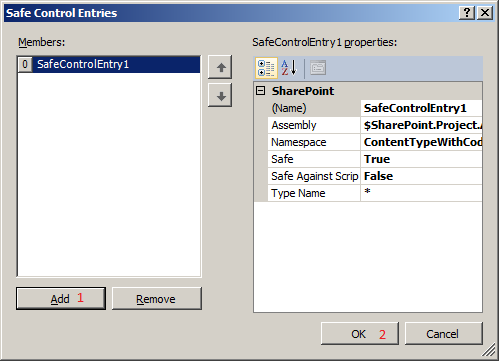
Click on PageLayout Module and press F4 and Click on Safe Controls Collection, That will bring up a new window that makes it easy to define a new safecontrol entry.
18. Now Click on 'Add' and 'OK' buttons. No need to change any value.
19. The content type will be deployed to the site collection, while the page layout is deployed to the master page gallery in a single web. Therefore, we need two separate features scoped differently.
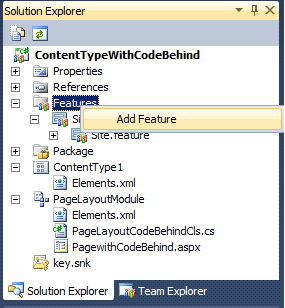
Now right click on Features Folder, by default we have one feature,delete default feature and add new feature.
20. Rename newly add feature to 'Site' and Change Title,Description and set Scope to 'Site' and add ContentType to 'Items in the feature'. look at the screen shot.
21. Now add another feature and rename it 'web' and change Title, Description and set Scope to 'Web' and add Page layout module to 'Items in the feature'.
22. Right click on Package and select 'View Designer' then u can see two features which are avail in the package.
23. Now deploy the project.
24. After successfully deployment of the project, you can see the newly added page layout in "_Catalogs/master" path.
go to site --> Site Actions --> Site Setting--> Master pages and page layouts which is under Galleries.
Now u can see newly added pagelayout in list of page layouts.
25. Now we will try to create new page with newly added content type.
Go to create new page(i.e publishing page) specify page name, description and select newly add pagelayout then click on 'Create'.
26. Finaly the page looks like this.
27. Click on 'Get Time' Button it will display current date and time in label.
28. Now enter some text in text box and click on 'Click Me' button, it will display message as "Hello, <textbox text> !!!" in the second label.
Let me know if u have any queries or suggestions. catch me here